
Sometimes you need to give someone a document they can hold onto. A client who wants to review the data after your call. A candidate who needs to brief their finance committee. A stakeholder who prefers a printed summary to a screen.
The PDF Report Generator produces a formatted jurisdiction brief in about 30 seconds. Here's what it includes and when it's useful.
How this analysis is done
Click the download icon in the header of any jurisdiction page in The Ballot Book to open the PDF generator, then select which sections to include: electoral history, voter registration, demographics, or current candidates. The report generates in about 30 seconds and works for any California jurisdiction.
The Situation
You've just finished a call about a city council race. The client says "Can you send me something with the numbers we discussed?" You could spend 20 minutes copying data into a document, or you could generate a PDF that includes the key metrics already formatted.
What the Report Includes
From any jurisdiction page, click the download icon in the header. A modal lets you select which sections to include:
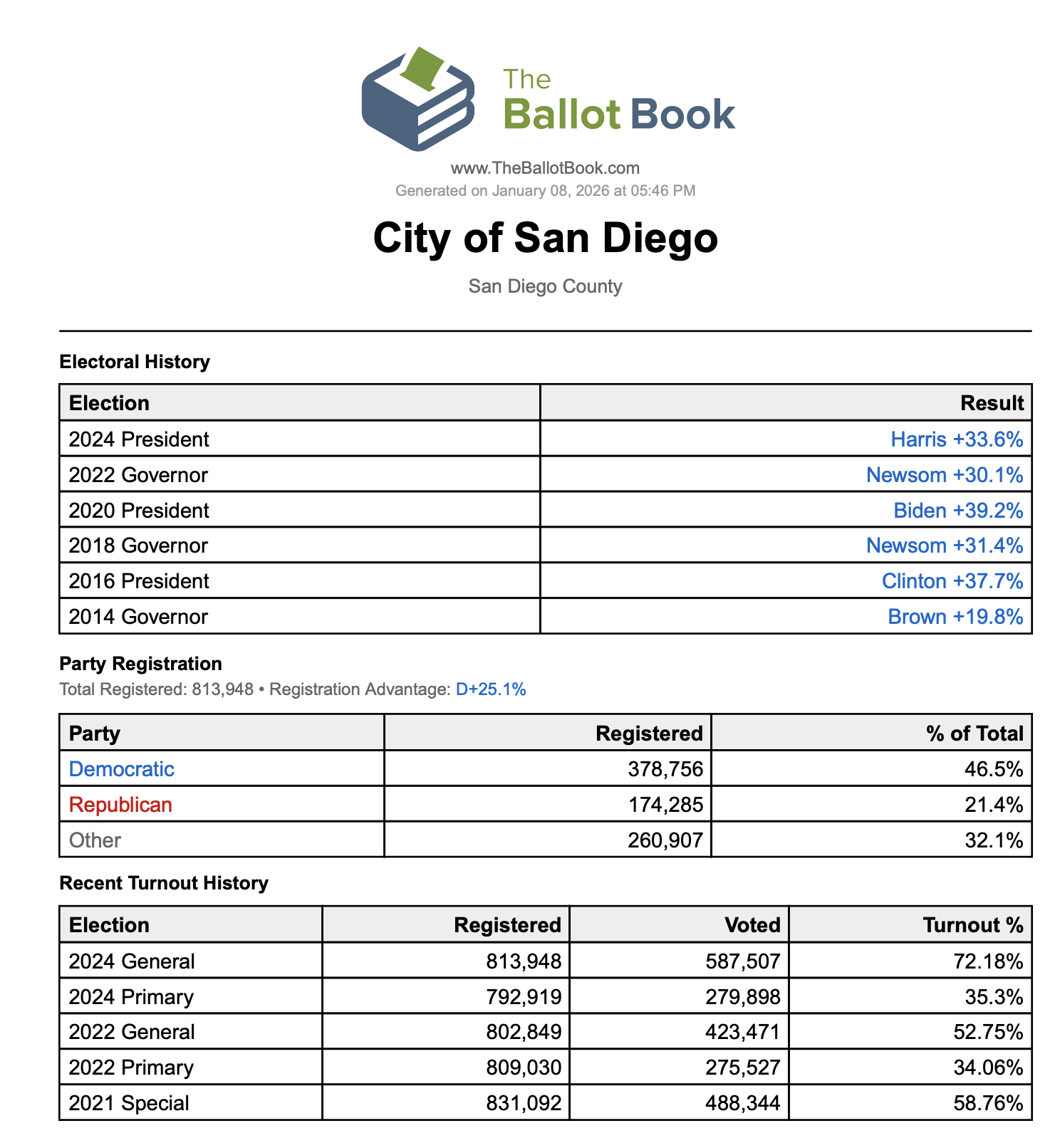
- Electoral History: Recent statewide race results (President, Governor) showing margins. Gives quick context on how the jurisdiction votes.
- Voter Registration & Turnout: Party breakdown and turnout history from recent elections.
- Demographics & Census Data: Population, race/ethnicity, and socioeconomic indicators with relative standing comparisons.
- 2026 Election Candidates: Candidates who have filed, along with their campaign finance summaries (raised, spent, cash on hand) when that data is available for the jurisdiction.
Select what's relevant, click generate, and the PDF downloads automatically.
What It's Good For
Post-meeting reference: After a briefing, send the PDF so the client has the data in front of them when they're making decisions later.
Printed materials for in-person meetings: Some conversations work better with paper on the table.
Point-in-time documentation: The PDF captures data as of generation. Useful when you need to show what the landscape looked like at a specific moment.
What It Doesn't Include
The PDF is a summary, not the full platform. It won't include:
- Precinct-level maps or data
- Ideology analysis scores
- Transaction-level campaign finance (individual contributions and expenditures)
- Historical trend comparisons
If someone needs that level of detail, walk them through the platform directly. The PDF is for when a clean summary is what's called for.
Choosing What to Include
Not every report needs every section. Match the content to the purpose:
For a political briefing: Electoral History and Voter Registration give the political context. Demographics can add useful background but isn't always necessary.
For a candidate meeting: Include Candidates to show who else is in the race and where they stand financially, plus Electoral History for context on how the jurisdiction typically votes.
For a quick reference: Electoral History alone may be enough if all they need is the political lean.
Sections are only available if the jurisdiction has that data. If a checkbox is grayed out, that data doesn't exist for this jurisdiction.
When This Isn't the Right Approach
If the recipient needs to explore the data themselves—filter by precinct, compare across elections, dig into campaign finance details—the PDF won't serve them. Walk them through the platform instead.
The PDF is also a snapshot. If data changes between when you generate it and when they read it, the PDF won't reflect the update. For fast-moving situations close to an election, keep that in mind.